
Before you begin
Concepts
1. Account and MCP key
1
Sign in to Daven
Log in at daven.ai.
2
Create a key in Settings > MCP Keys
Open Daven AI Settings > MCP Keys and generate a key.
- Format:
dvn_mcp_live_…(full value shown once) - Up to 5 active keys per account
- Env var name:
DAVEN_API_KEY
VITE_*), or ship it in the client bundle.3
Connect your MCP client (optional)
In ChatGPT / Codex Desktop, open Settings → MCP servers → Add server and connect 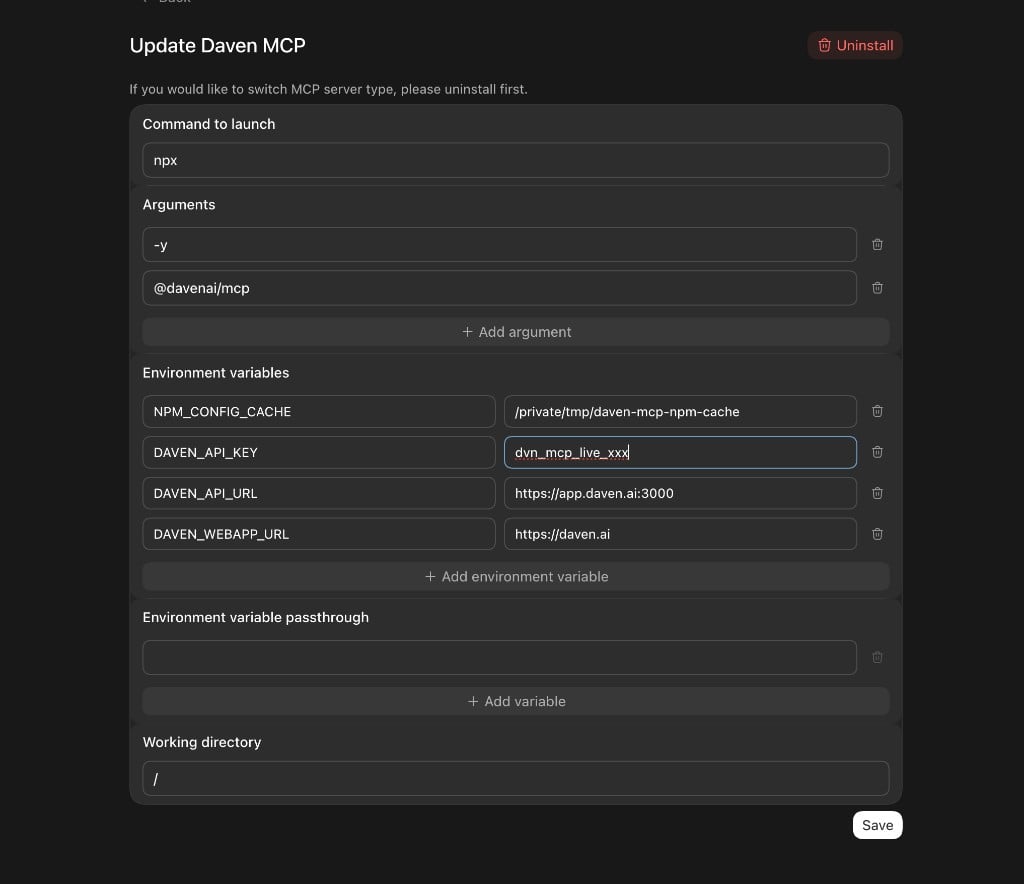
@davenai/mcp. Use Type: STDIO.Save, then restart MCP. Once connected, the agent can use account, quote, and media tools while you build. Follow
daven_guidelines for app-writing rules.2. Build the education app
Browser → server API → Daven. Keep the key on the server (or Vercel serverless) only. Local lab / reference:dv_mcp (starter/, apps/sihwa_project). → Reference app
3. Deploy
Playground submit needs a public HTTPS URL.- Connect the project on Vercel (Root Directory e.g.
apps/sihwa_project). - Set server-only env vars (no
VITE_prefix):
- Confirm the app works on the deploy URL.
dv_mcp/apps/sihwa_project/DEPLOY.md
4. Verify and submit in Playground
- Open daven.ai/playground.
- Paste the app URL — local or Vercel Preview/Production.
- Pass the checklist with your MCP key.
- Submit to Daven.