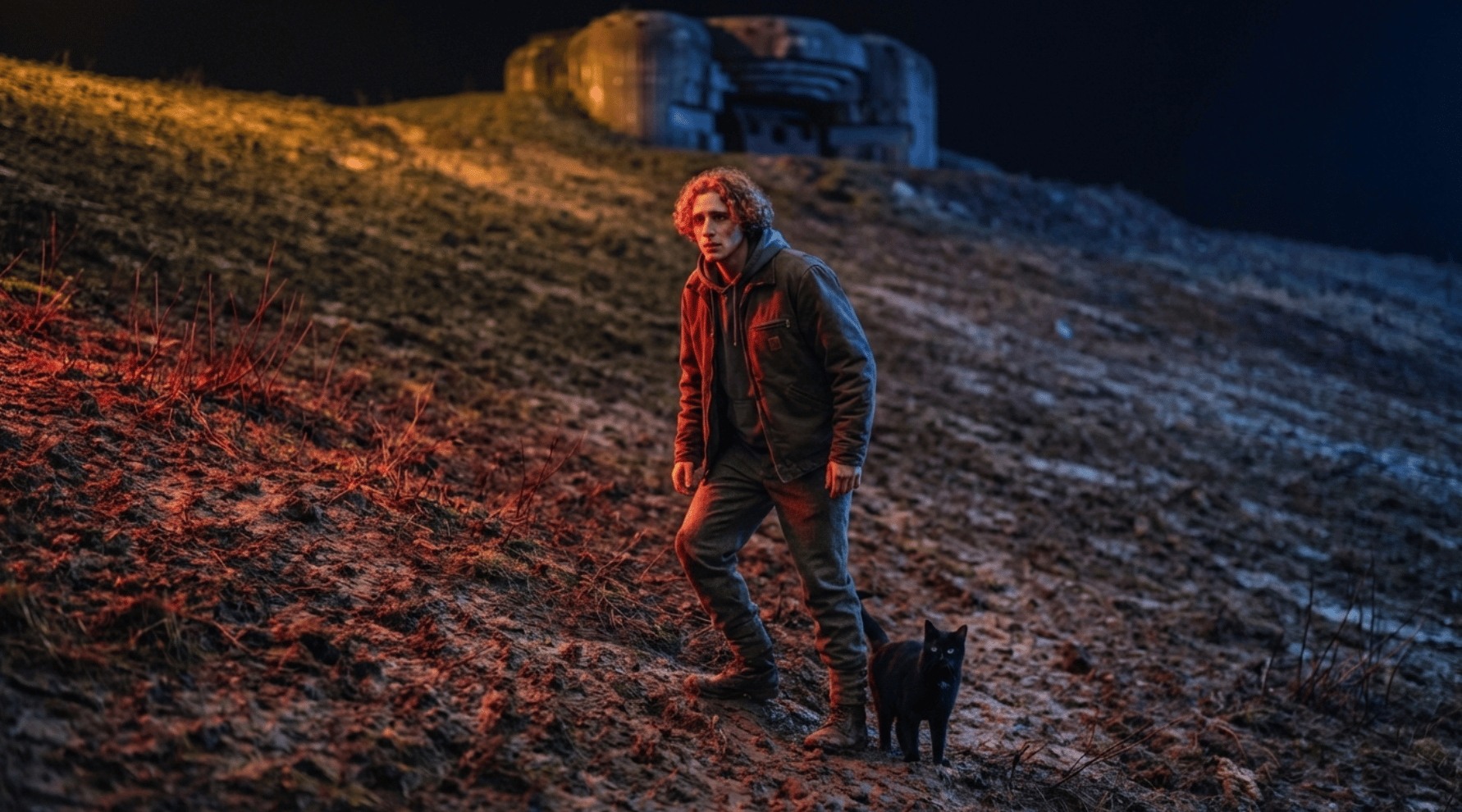
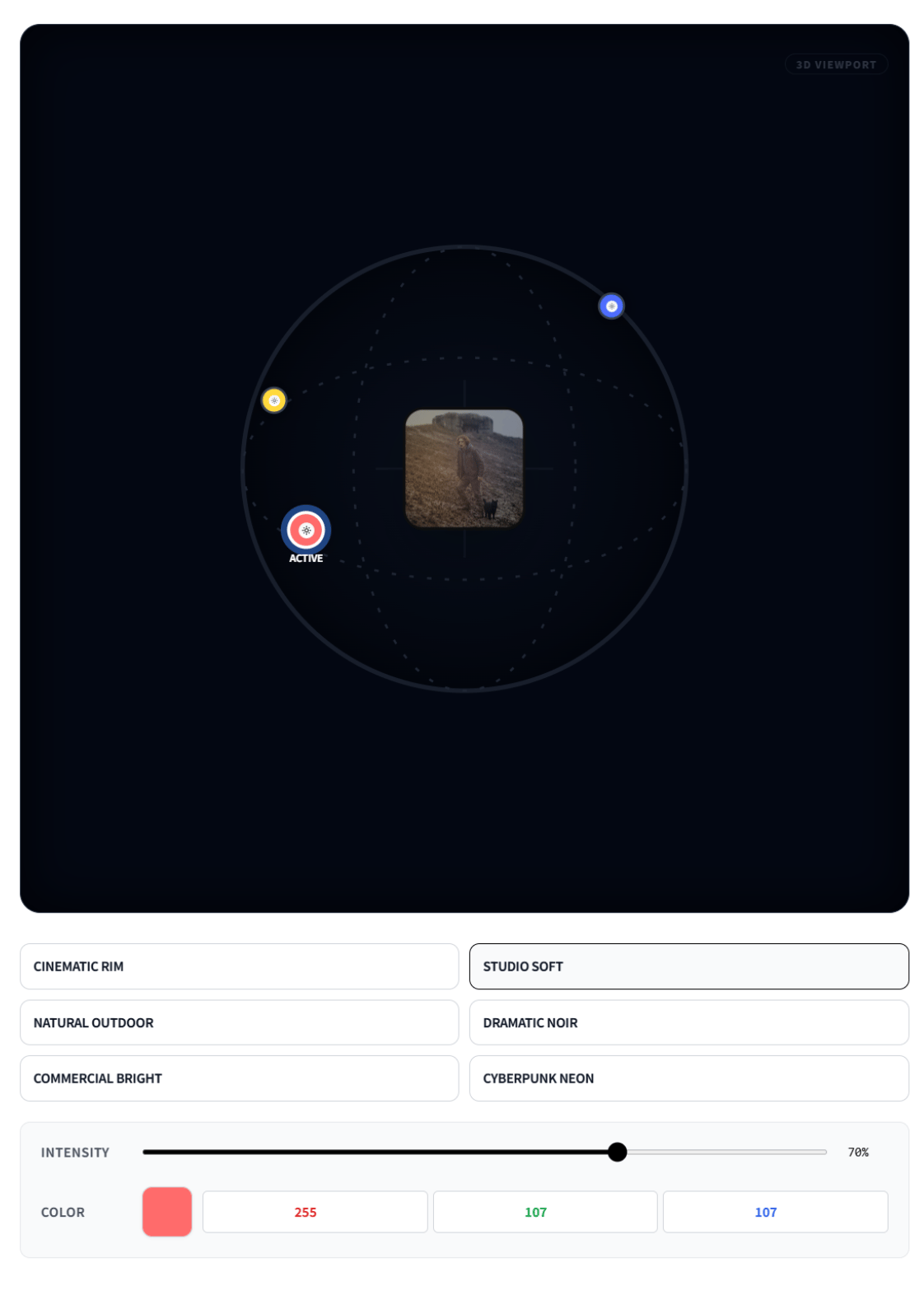
Step 1. Upload reference image
- Upload the image you want to apply lighting to.
-
You can drag a generated image or load it via the [Select option] button.
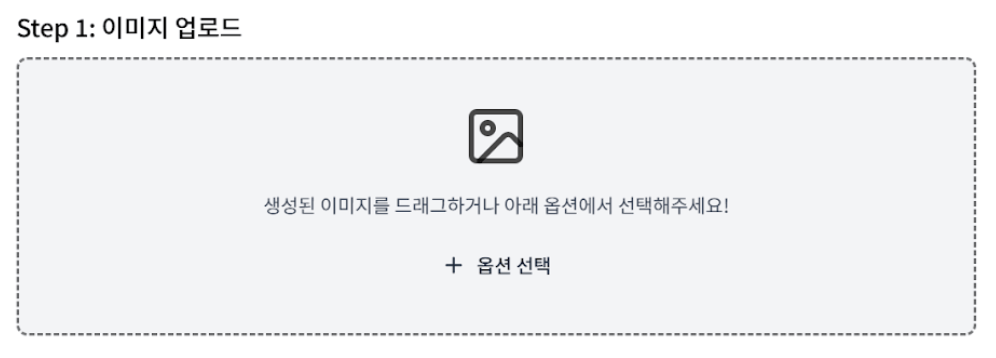
Step 2. Output settings
- Choose aspect ratio (e.g. 1:1, 16:9).
- Choose resolution (e.g. 1K, 2K).
- This determines the final frame and quality.
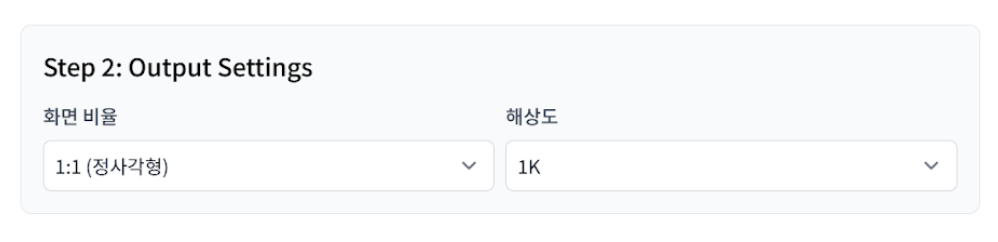
Step 3. Multi-Light System
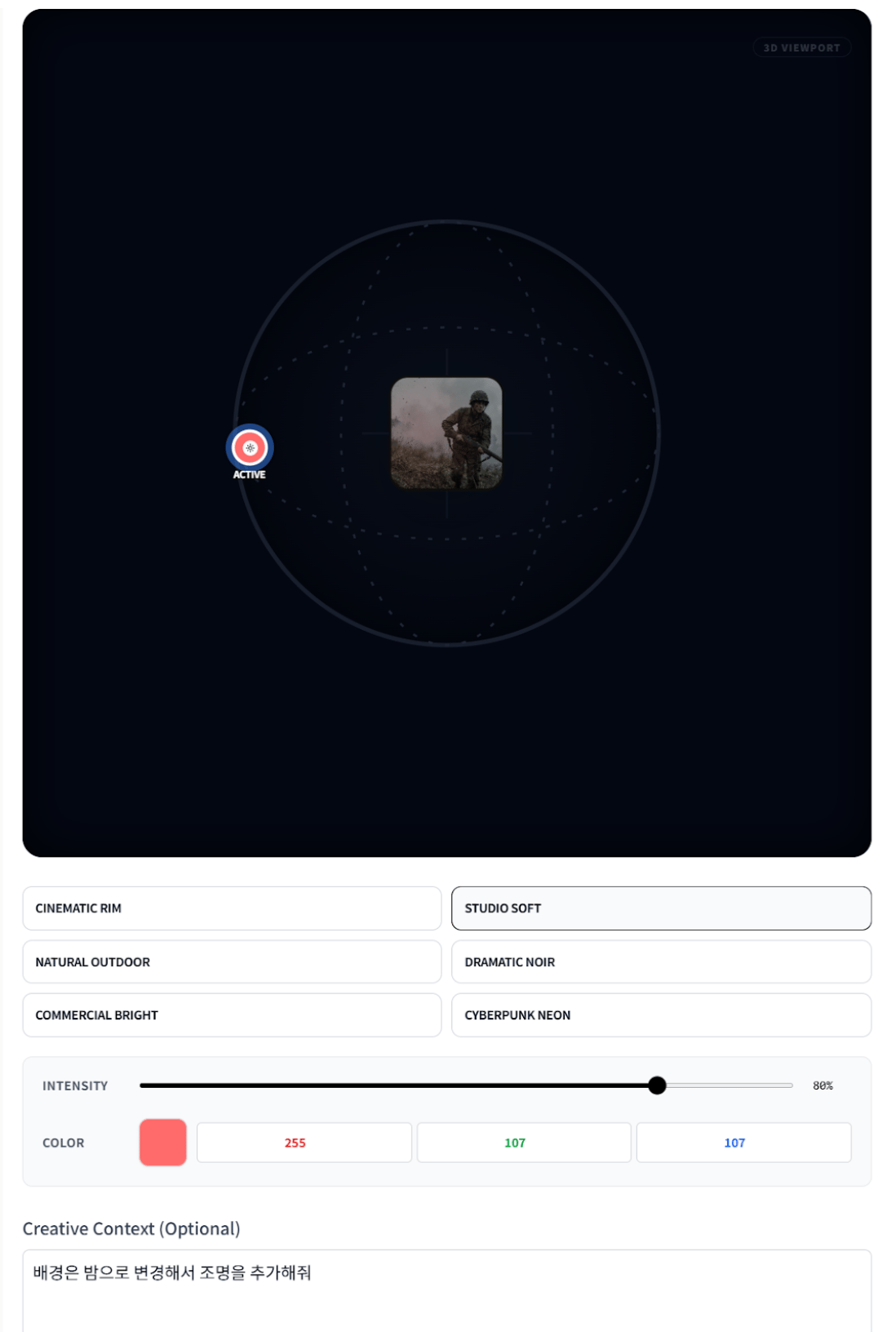
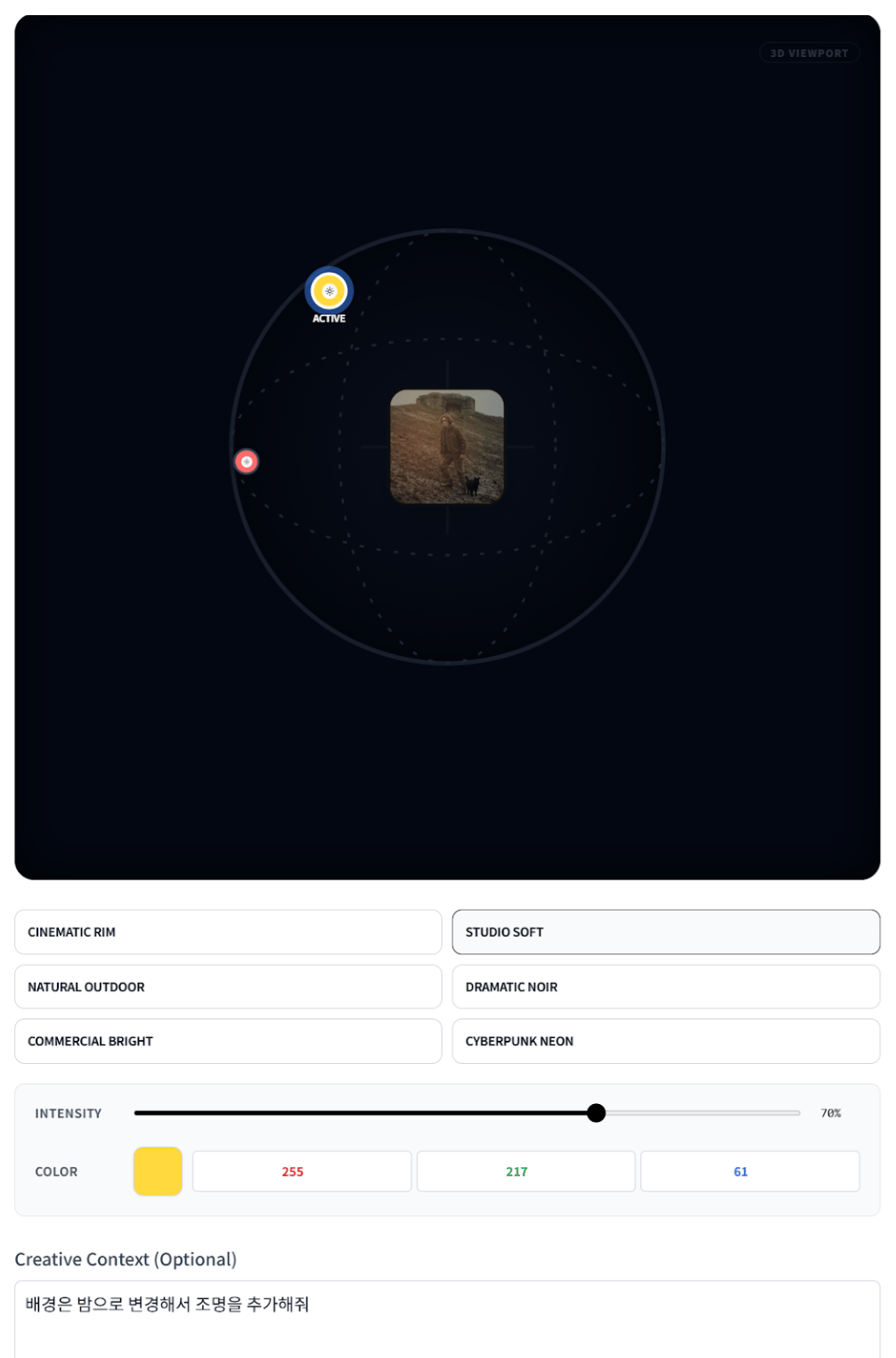
- You can add up to 3 lights with the L1, L2, L3 buttons.
- Each light can be configured separately.
📍 Setting light position
You can quickly choose from 6 preset positions:-
TOP / BOTTOM / LEFT / RIGHT / FRONT / BACK
For finer control:
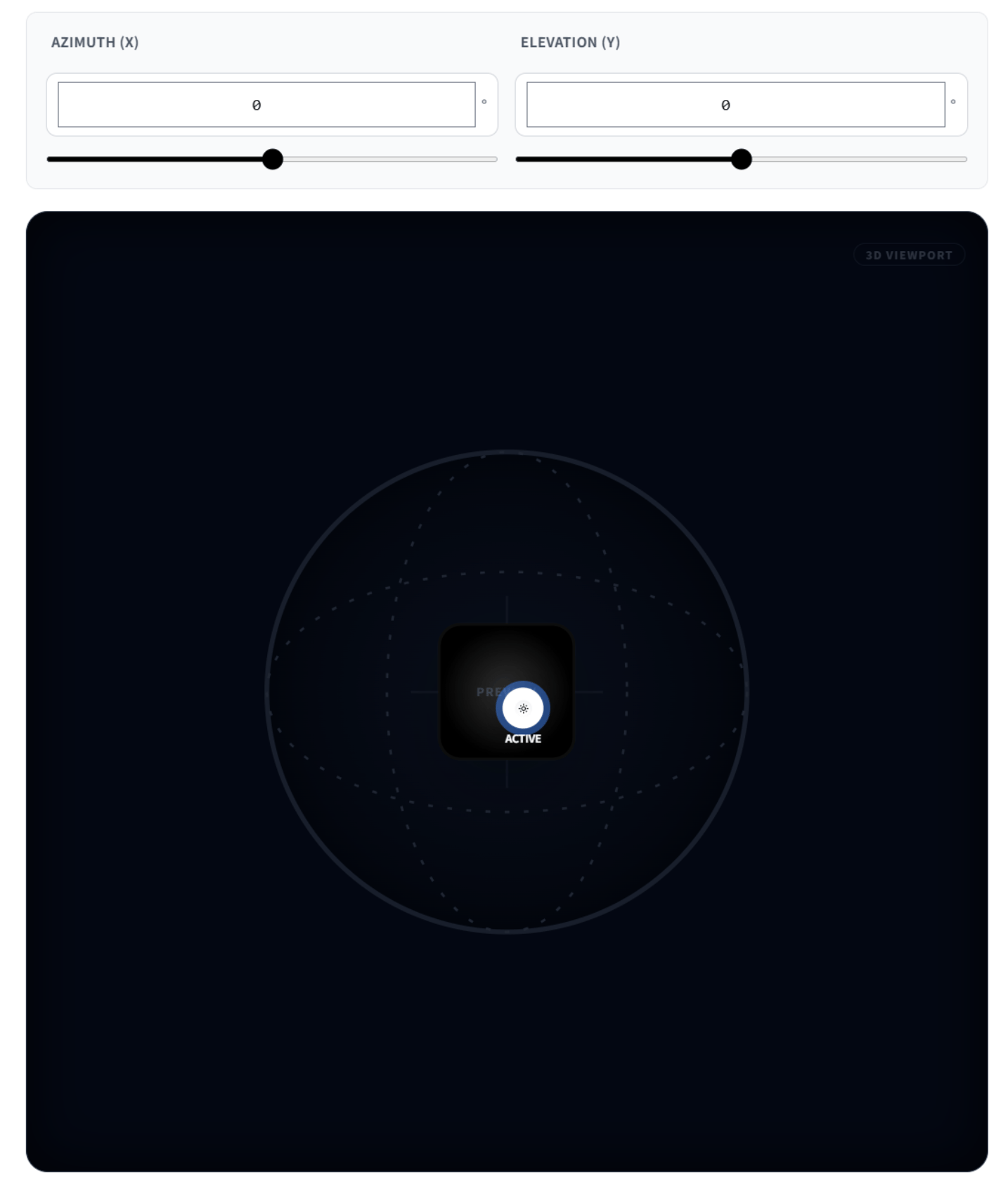
- In each light tab, use the spherical (3D) simulation view
- to set the light direction as you want.
- Azimuth (X) and Elevation (Y) sliders allow fine angle adjustment.
Step 4. Choose lighting style
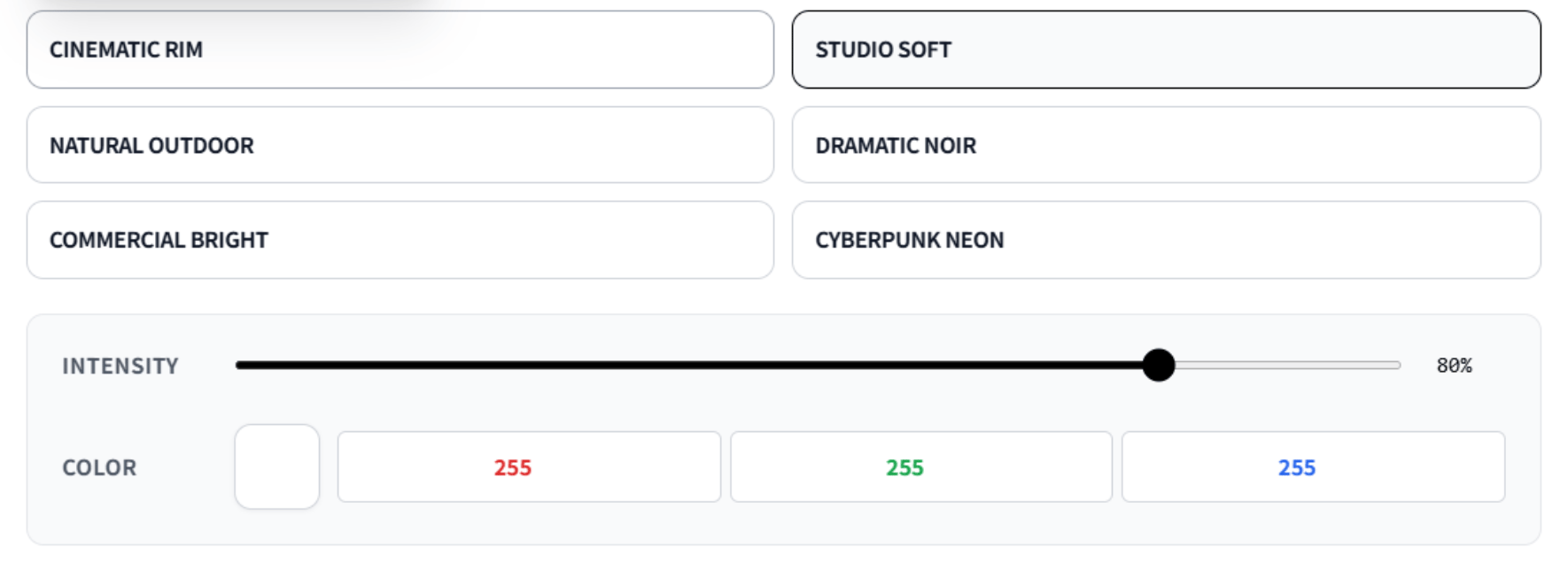
Choose the mood from these 6 lighting presets:- Cinematic Rim
- Studio Soft
- Natural Outdoor
- Dramatic Noir
- Commercial Bright
- Cyberpunk Neon
Step 5. Brightness & color
- Intensity slider: Adjust light brightness (strength).
- Color palette / RGB:
- Pick the light color directly or
- Set an exact color with RGB values.
Step 6. Add text (optional)
- You can add a text prompt to
- give more specific direction for mood or style.
- If you leave the text empty:
- only the lighting effect is applied to the image.
Step 7. Generate
- When you’re done, click [Generate].
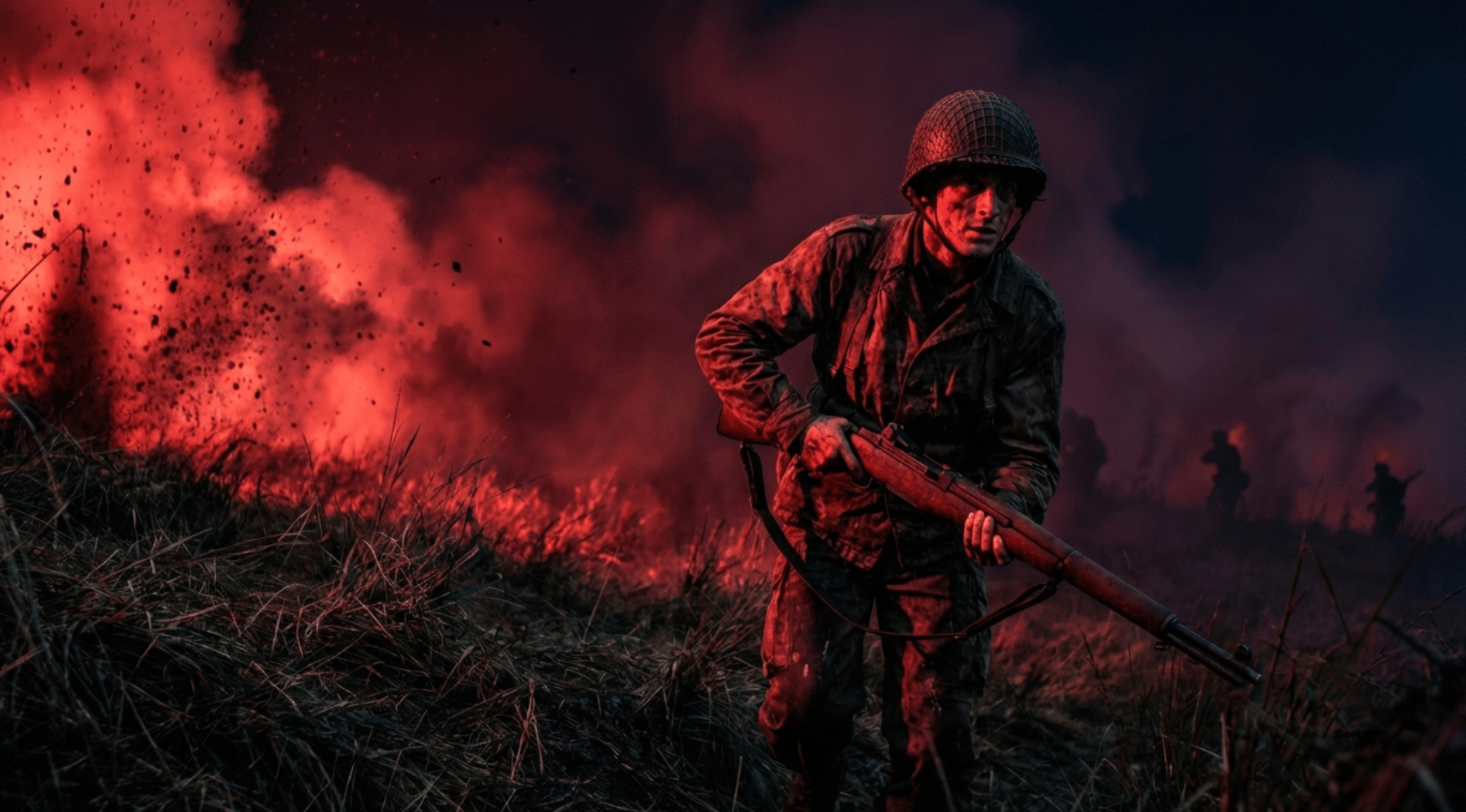
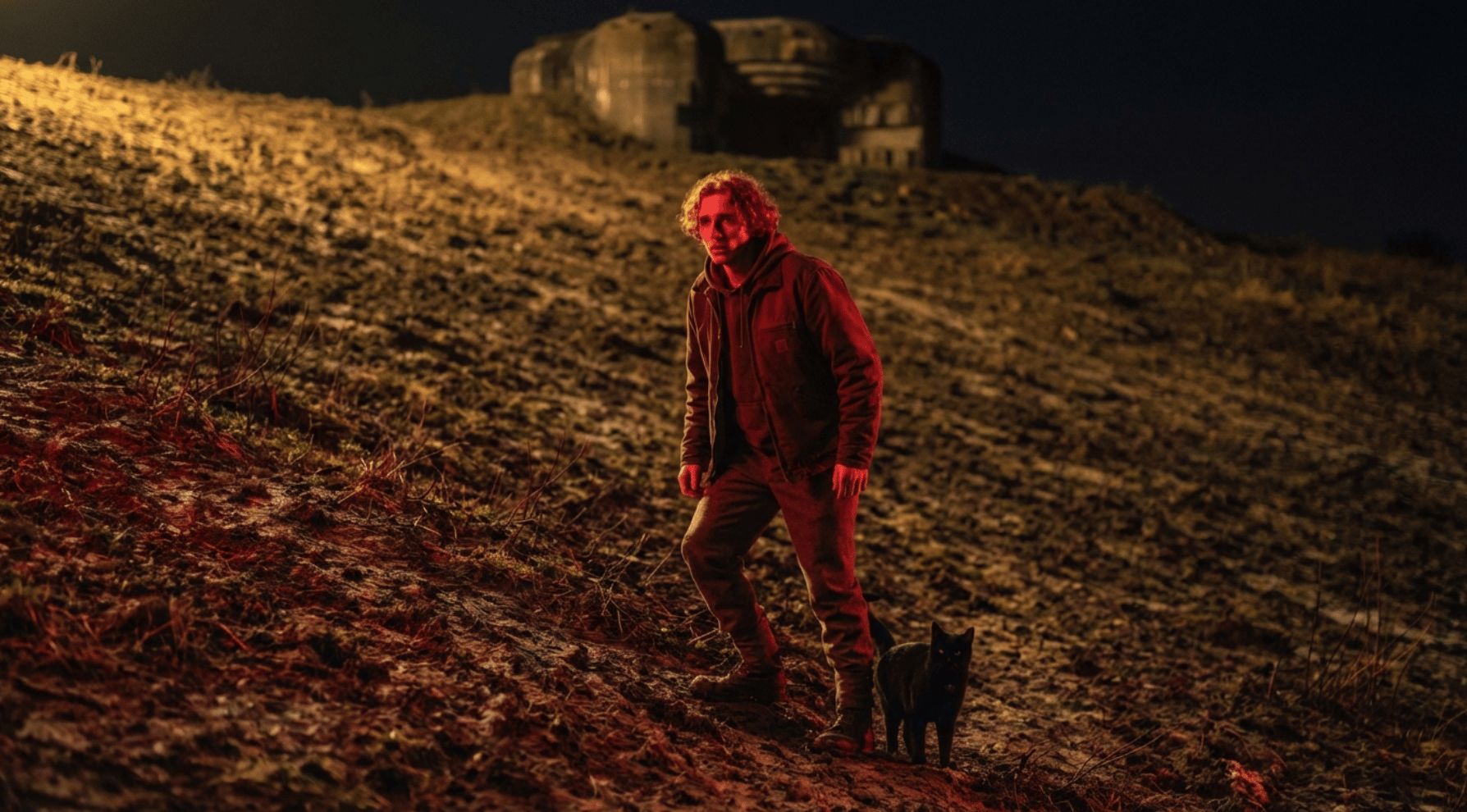
- 👉 The final image with lighting is generated automatically.