1. Upload reference image
- First upload one main reference image that will be the basis of the sequence. _You can also upload _ \*up to 10 additional reference images\*\* if needed.
- The main image defines the world, characters, space, and mood of the whole sequence.
2. Cine Sequence overview
- * Cine Sequence takes one main image and, based on your chosen \ \*sequence type (concept)\*\*, \*automatically generates a cinematic sequence of 9 scenes (Scene)\*\*.
- * Each sequence is like a storyboard: one scene split into 9 panels.
3. Using reference images & text prompt (important)
- Besides the main reference image you can add: Additional reference images Text prompt (custom prompt)
- In that case Cine Sequence: Keeps the composition, characters, mood, and world of the main image and incorporates the extra images and text to extend into 9 sequence scenes that match the chosen concept. So: Base image \+ extra references \+ text direction \= A narrative 9-panel cinematic sequence built from your image
4. Sequence type (10 options)
- Joyful Sequence
- War/Duel Sequence
- Calm/Peaceful Sequence
- Dance/Rhythm Sequence
- Farewell Sequence
- Dialogue Sequence
- Revelation Sequence
- Release Sequence
- Memory Sequence
- Commerce Sequence
- Intense Action Sequence Each type has different scene progression and emotional curve.
5. Output settings
- Aspect ratio (e.g. 16:9, 1:1)
- Resolution (e.g. 1K)
- Output mode: 🟦 Grid (single image): 3×3 layout; all 9 scenes in one image 🟩 9 separate frames: Each scene as its own image (9 images)
6. Using Grid mode
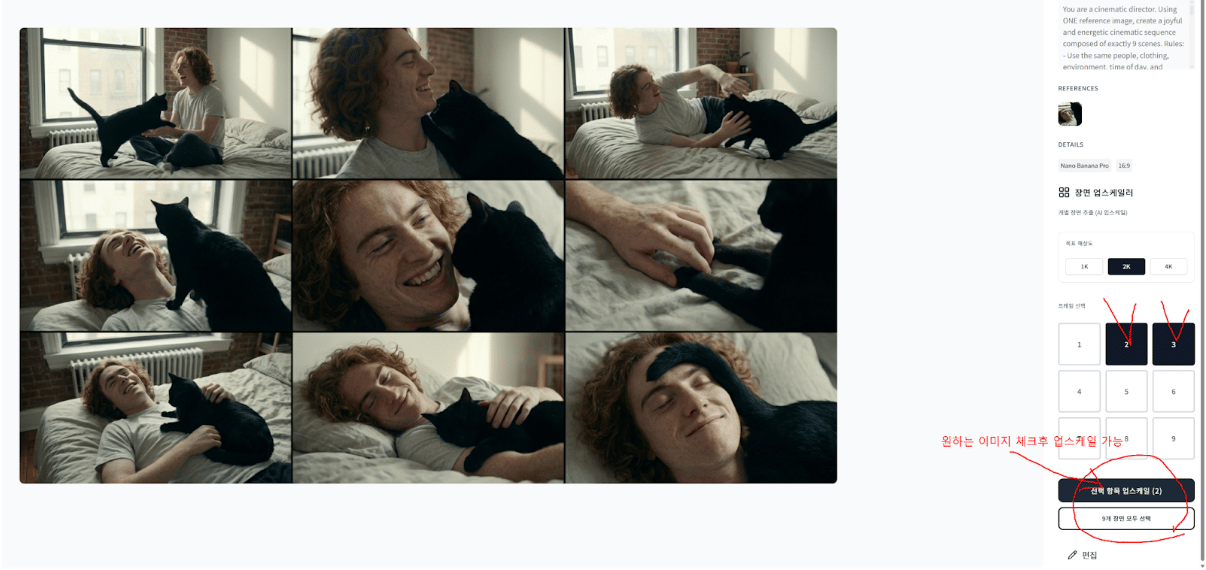
- After choosing a sequence, generate in \[Grid\] mode: 3×3 \= 9 panels in one image.
- In the result you can: Select a panel by number and upscale it.
- ⚠️ Note: Grid output is small panels upscaled, so upscaling may reduce resolution and detail.
7. 9 separate frames mode (recommended)
- With \[9 separate frames\] mode: Each sequence scene is generated as its own image from the start (9 images).
- Benefits: Each panel has full resolution Better quality without upscaling Better for storyboards, continuity, and cinematic planning
8. Workflow summary
- Upload main reference image
- (Optional) Upload extra reference images
- (Optional) Enter text prompt
- Choose sequence type
- Set aspect ratio / resolution
- Choose output mode (Grid or 9 separate frames)
- Click Generate
- Review result and (if needed) select panel(s) / upscale
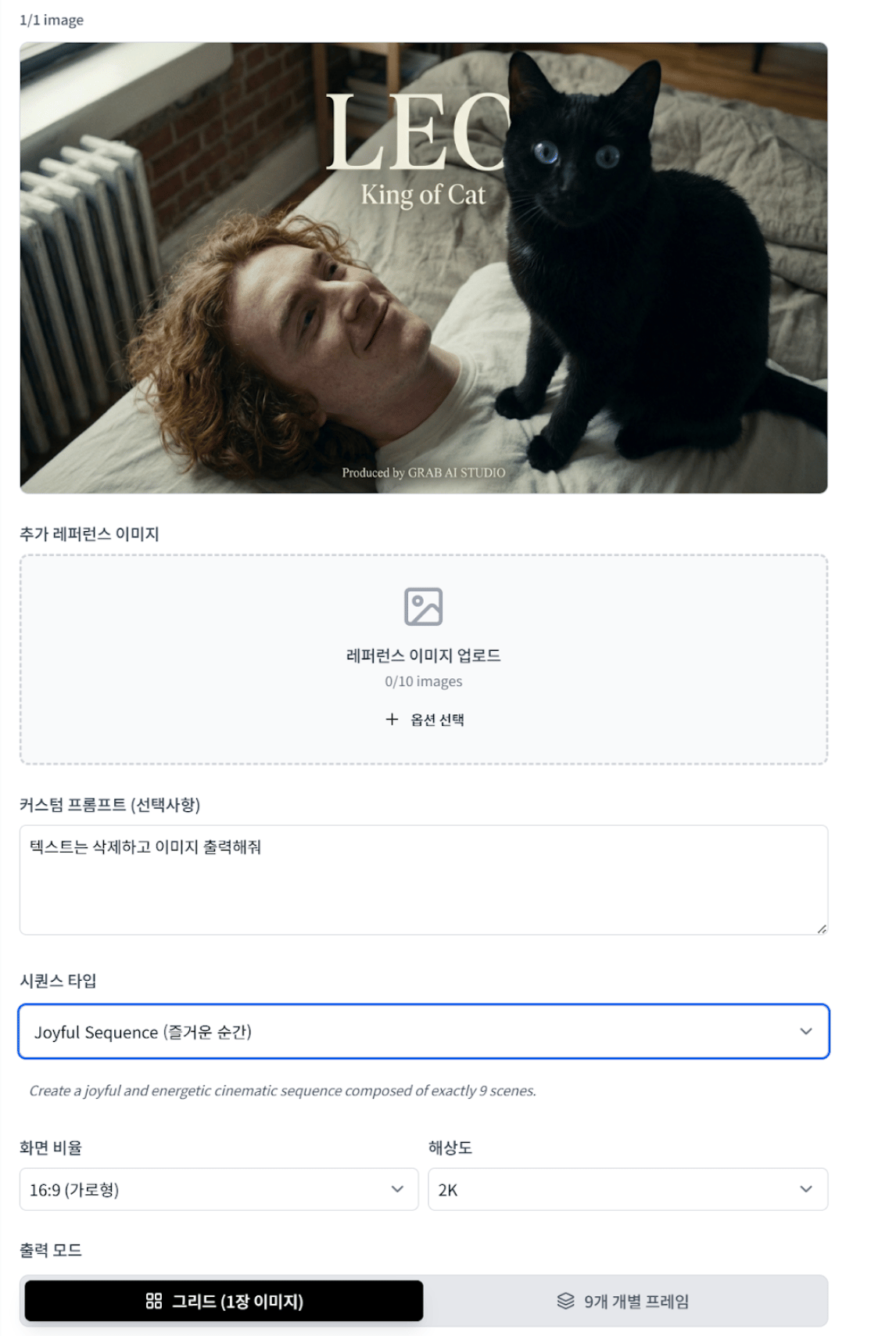
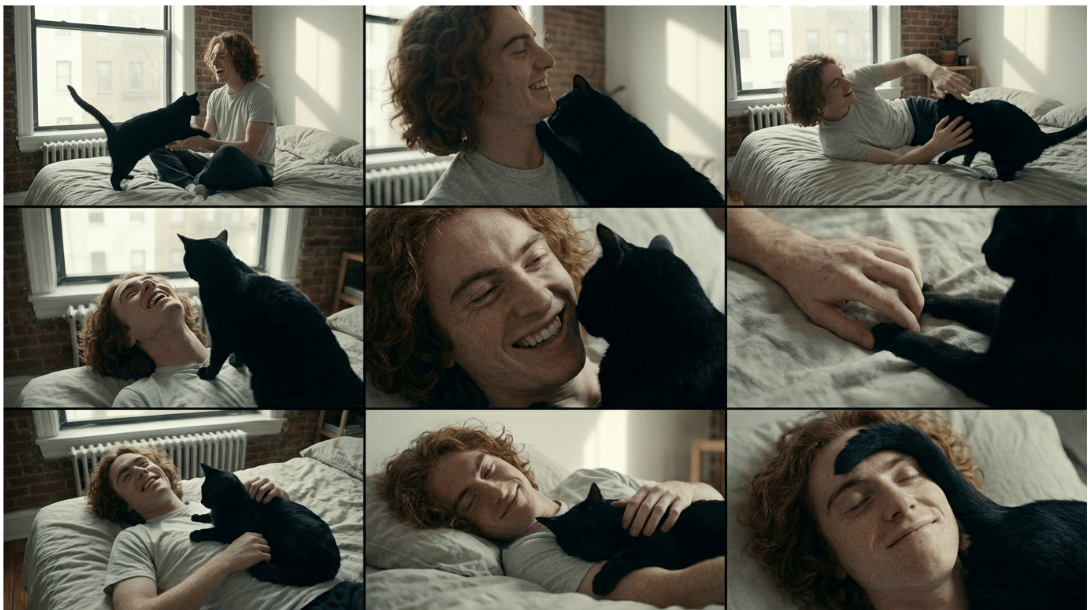
- Request image generation after entering “remove text from image” in the text box